Showing posts with label OBDSTAR iscan. Show all posts

2026/05/10

How to Replace OBDSTAR iScan Touch Screen?


Tutorail: How to replace the touch screen and mainboard of OBDSTAR P50, OdoMaster and iScan motorcycle/iScan Marine series devices.


Step 1: Use an electric screwdriver (or screwdriver) to remove the 4 screws securing the back cover.
replace obdstar p50/odomaster/iscan screen 1
Step 2: Carefully open the back cover and remove the battery cable and speaker cable.
replace obdstar p50/odomaster/iscan screen 2
Step 3: Use an electric screwdriver (or screwdriver) to remove the 2 fixing screws on the Android motherboard.
And unplug the antenna cable by hand.
replace obdstar p50/odomaster/iscan screen 3
Step 4: Grasp both ends of the Android motherboard and pull it upward to remove it.
replace obdstar p50/odomaster/iscan screen 4
Step 5: Remove the fixing screws on the VCI mainboard. Tear off the acetate cloth on the touch screen and display cable.
replace obdstar p50/odomaster/iscan screen 5
Step 6: Remove the power switch button. Then lift it upwards, open the display and touch screen cable clips, remove the cable, and then remove the VCI mainboard.
replace obdstar p50/odomaster/iscan screen 6
Step 7: Tear off the acetate cloth and remove the light guide. Use your hands to push open the display screen positioning latch and remove the display screen.
replace obdstar p50/odomaster/iscan screen 7
Step 8: Replace the new display screen and reinstall the acetate paper and light guide column.
replace obdstar p50/odomaster/iscan screen 8
Step 9: Pass the display and touch screen cables through the middle of the VCI mainboard, and then align the VCI mainboard with the machine’s locking screws and insert it.
replace obdstar p50/odomaster/iscan screen 9
Step 10: Reinstall the VCI mainboard fixing screws, power switch and cable acetate paper.
replace obdstar p50/odomaster/iscan screen 10
Step 11: Insert the Android mainboard into the VCI mainboard and install the fixing screws and antenna clips.
replace obdstar p50/odomaster/iscan screen 11
Step 12: Install the battery cable and speaker cable, and close the back cover.
replace obdstar p50/odomaster/iscan screen 12
Step 13: Put the rear cover screw back.
replace obdstar p50/odomaster/iscan screen 13
NOTE:

1. If you cannot boot or have other abnormalities after replacing the Android motherboard, pleas e contact after-sales. You need to provide your device serial number.
2. If the display is abnormal after replacing the display screen, please contact after-salesand provide your device serial number;
3. When you need to replace the VCI motherboard, please contact the dealer to synchronize your account information and provide the serial numbers of the new and old VCI motherboards.


FYI: If your OBDSTAR P50/Odomaster/iScan scanners cannot turn on even when connected to a power supply,

Possible Causes:

  • Battery is depleted.
  • Mainboard failure.


Troubleshooting and Solutions:

1. Connect the device to the power adapter and check whether the power indicator light turns on.

If the indicator light shows red, this indicates the device is charging. Allow it to charge for at least 30 minutes before attempting to power it on again.

If the device powers on, the issue was caused by a depleted battery. Fully charge the battery to resolve the issue.

If the device still does not power on, the problem is not battery-related.

Remove the back cover, disconnect the battery cable, and power the device directly via the mainboard (using the power adapter). Check if the device powers on.

If it powers on, the battery is faulty and requires replacement.
If it still does not power on, the issue is unrelated to the battery.
After ruling out battery issues, the problem is likely due to a faulty Android mainboard. Replacement of the Android mainboard is recommended.

2. If the power indicator light does not turn on at all when the power adapter is connected:

Try connecting the device to a vehicle’s power supply using the OBD main cable. If the indicator light turns on and the device powers up, the power adapter is defective and needs to be replaced.

If the device still shows no response even when powered via the vehicle:

The Android mainboard is most likely faulty. Replace the Android mainboard first to eliminate this possibility.

If replacing the Android mainboard does not resolve the issue, the VCI (Vehicle Communication Interface) mainboard is likely defective and requires replacement.


Read also:

How to Replace OBDSTAR DC706 Screen and Mainboard?

2026/02/25

OBDSTAR 2023 BMW R 1250 GS ADVENTURE Service Reset Guide

How-to: reset 2023 BMW R 1250 GS ADVENTURE motorcycle service light using OBDSTAR motorcycle scanners.
Background

After performing regular maintenance on a BMW motorcycle (such as oil changes), the dashboard shows an incorrect maintenance reminder caused by a malfunction, or after carrying out special maintenance such as brake pad replacement, you will need to use the service reset function of the diagnostic scanner. This function will reset the vehicle' s maintenance reminder and allow you to manually set the recommended mileage and date for the next service based on the current maintenance condition.


Tools used

Preparation: MOTOMASTER/MS80/iscan BMW, M001A

Solution:

Solution:

When the service lamp is illuminated or the service interval is reached, use OBDSTAR MOTOMASTER to perform the [BMW] system -[Service Lamp Reset] function and reset the vehicle's service parameters, clearing the service lamp.

Steps:
1. Select [MOTO Diag]--[BMW]--Latest Version to enter [Diagnosis]

2.Click New Version (–2025)

OBDSTAR 2023 BMW R 1250 GS ADVENTURE Service Reset 1

OBDSTAR 2023 BMW R 1250 GS ADVENTURE Service Reset 2

 OBDSTAR 2023 BMW R 1250 GS ADVENTURE Service Reset 3

3. Auto Identify[VIN]

4. Click [Read], wait for the device to read the vehicle identification number (VIN), then click [OK]

5. Verify that the Input VIN is correct, then click [OK].

 OBDSTAR 2023 BMW R 1250 GS ADVENTURE Service Reset 4

6. Confirm the identified vehicle model year, and click [OK] if correct.

OBDSTAR 2023 BMW R 1250 GS ADVENTURE Service Reset 5

7. Choose [Common Special Functions] (You can also find the Service reset function in the service menu).

OBDSTAR 2023 BMW R 1250 GS ADVENTURE Service Reset 6

8. Click Service Lamp Reset

 OBDSTAR 2023 BMW R 1250 GS ADVENTURE Service Reset 7

9. Click Enter

 OBDSTAR 2023 BMW R 1250 GS ADVENTURE Service Reset 8

10. Before performing the settings, please first confirm if the following vehicle information is accurate :

A. Current total distance: 1,283 km

B. Current calendar date: 9.8.2025

C. Next service date: 7.2026

D. Service remaining distance 0 km (This means the preset service mileage is used up and needs to be reset immediately)

E. Target odometer reading service 1283 KM

Confirm that the above 5 items are correct, please click [①Continue with setting the Service Interval Indicator]

OBDSTAR 2023 BMW R 1250 GS ADVENTURE Service Reset 9

11. 

First, the system will show two sets of dates:

A. Instrument Cluster Date: The current calendar date of the vehicle

B. Scanner Date: The current calendar date of the tester


Please verify that the Instrument Cluster Date (A) is accurate. If incorrect, choose one of the following options to correct it:

Please verify and confirm whether the vehicle instrument cluster date (A) is accurate. If the date or time is incorrect, Perform calibration in any of the following ways:

1. Synchronize the device time: Click [①Accept the date and time from the diagnosis system] to synchronize the vehicle's device with the diagnostic scanner ;

2. Set manually: Click [②Set calendar date manually] to input the correct date and time directly.


After confirming or adjusting the date, click [③Continue with setting the Service Interval Indicator]

 OBDSTAR 2023 BMW R 1250 GS ADVENTURE Service Reset 10

The diagnostic device has automatically generated default service recommendations based on the vehicle' s date and mileage: the next service is due at 10,000 km or in 1 year.

The maintenance parameters can be flexibly configured via any one of the following four methods according to the actual maintenance requirements:

①Accept service data: Accept the recommended 10,000 km / 1-year interval

②Adjust remaining mileage: Manually enter a custom mileage interval

③Adjust service date: Manually select a future service due date

④Adjust remaining mileage and service date Back: Manually enter a custom mileage and select a custom due date


Select the method based on your maintenance plan. Once set, you can continue with the next steps.

 OBDSTAR 2023 BMW R 1250 GS ADVENTURE Service Reset 11

 OBDSTAR 2023 BMW R 1250 GS ADVENTURE Service Reset 12

12. The service data for the next service has been successfully set. If the service parameters are incorrect, you can reset them following procedure outlined above.

OBDSTAR 2023 BMW R 1250 GS ADVENTURE Service Reset 13

2026/01/29

OBDSTAR iScan Reset Moto Guzzi V85TT 2024-25 E5+ Service Light

Moto Guzzi V85TT 2024-25 E5+ resetting service light done using OBDSTAR iScan Guzzi diagnostic scanner after the 10,000 km mark!

 OBDSTAR iScan Reset Moto Guzzi V85TT 2024-25 E5+ Service Light 1

Procedure:

Connect OBDSTAR iscan scanner with motorcycle via diagnostic port.
Go to MOTO GUZZI diagnostics- By model- manual select motor model.

OBDSTAR iScan Reset Moto Guzzi V85TT 2024-25 E5+ Service Light 2
 OBDSTAR iScan Reset Moto Guzzi V85TT 2024-25 E5+ Service Light 3

Select Manual selection- Instrument panel- COBO TFT 5"- Special function.

OBDSTAR iScan Reset Moto Guzzi V85TT 2024-25 E5+ Service Light 4
 OBDSTAR iScan Reset Moto Guzzi V85TT 2024-25 E5+ Service Light 5

 OBDSTAR iScan Reset Moto Guzzi V85TT 2024-25 E5+ Service Light 6

OBDSTAR iScan Reset Moto Guzzi V85TT 2024-25 E5+ Service Light 7

Input special function password: 123.
Choose Service reset function.

OBDSTAR iScan Reset Moto Guzzi V85TT 2024-25 E5+ Service Light 8
Reset service light successfully.
OBDSTAR iScan Reset Moto Guzzi V85TT 2024-25 E5+ Service Light 9

OBDSTAR iScan Reset Moto Guzzi V85TT 2024-25 E5+ Service Light 10

2025/04/28

KTM 2020 Superduke Gear Sensor Learning with OBDSTAR

I just cleaned my 2020 KTM 1290 Superduke motorcycycle throttle carbon and some stains, but I have encountered some problems after cleaning it. Now I've solved them and I'm sharing the experience here.
 
I cleaned the throttle after removing the parts like air filter, intake pipe etc. After cleaning, I found that the motorcycle's idle speed was unstable, and I remembered that I had forgotten to initialize and learn about the throttle. So I looked for a friend from the repair store to borrow a scanner to initialize the bike, because there is no dedicated scanner for the KTM, so I used a scanner called OBDSTAR Motormaster (or use iScan for KTM).... As far as I know, normally the motorcycle should be back to normal after doing the throttle initialization function, but after I did this function the motorcycle's gear and startup seemed to have some abnormalities.

I asked my friend for a service manual for a 2020 Superduke to see if there was anything in there about the throttle, and I finally found information about it in section 27.3 of the manual, and you can see the photos below for the specific information, which probably means that you need to do a function like a gear sensor reset at the end. I was a bit puzzled as to why I would need to do this, but went ahead to did what it said......

After doing the gear reset, the dashboard gear was reset, but the car has been restored to normal on the startup side, and finally you just need to learn the gear again to be able to drive normally, as for the method of learning the gear is not that difficult, there is a function called “Shift Shaft Reference Value Learning” in the OBDSTAR scanner, and you can just follow the instructions in it to operate it in a easy way.

KTM 2020 Superduke Gear Sensor Learning with OBDSTAR 1

KTM 2020 Superduke Gear Sensor Learning with OBDSTAR 2

KTM 2020 Superduke Gear Sensor Learning with OBDSTAR 3

KTM 2020 Superduke Gear Sensor Learning with OBDSTAR 4


2023/08/29

OBDSTAR iScan Scanners How to Submit Log Data?

How to submit log data if your OBDSTAR iscan/MS50/MS70 etc series scanners failed to reset service reminder, failed to reset oil, or failed to operate other functions. 

1.Go to Support Function
OBDSTAR iScan Scanners How to Submit Log Data 1
2. Click on Log Upload
OBDSTAR iScan Scanners How to Submit Log Data 2
3.Hit Upload and update log data. 
OBDSTAR iScan Scanners How to Submit Log Data 3
Apart from log data, also send vehicle model, year, VIN, device serial number and operation date to your dealer for analyze by OBDSTAR technician.

2023/08/09

OBDSTAR iScan No Motorcycle Software Solution

 Problem:

I got the OBDSTAR iScan Ducati motorcycle diagnostic tool but there is no Ducati software, only OBDII. What should I do?

OBDSTAR iScan No Motorcycle Software 1
Solution:
All OBDSTAR iscan scanners has no software in default. 
Users have to register and update device to get related software.
OBDSTAR iScan No Motorcycle Software 2
Follow instruction here to register and update iScan motor scanners.

2023/07/05

OBDSTAR Update Ducati Motorcycle till 2022

 OBDSTAR IScan DUCATI motorcycle released new software version V31.50. 


The entire vehicle series is supported until October 2022.

Highlights Added

• A/F self-adaptive reset
• ABS setting in EOL mode
• ANNUAL SERVICE
• Annual service warning light deactivation
• Anti-theft enabling/disabling
• Bat. volt, history display
• Bat. volt, history reset
• Bluetooth enabling/disabling
• DESMO service light reset
• DQS adaptive reset
• DRL Daytime Running Light enabling/disabling
• Enable/disable DQS
• Exhaust valve calibration
• Exhaust valve system maintenance
• Fuel level value reset
• GPS enabling/disabling
• Heated grips enabling/disabling
• Idle control adaptive reset
• Idle speed engine operation mode
• Key reset
• Knock sensor adaptive reset
• Odometer writing (totalizer)
• OIL SERVICE
• OIL service light reset
• PIN code reset
• Reset gears
• Reset the adaptive values of the throttles in a completely closed position
• Reset the debug packages
• Reset the transmission adaptive values
• Reset self-adaptive A/F parameters
• Storing keys
• Suspension rotary sensor calibration (rear)
• Throttle balancing
• TPMS code writing
• TPMS Registration
• TPS adaptive reset
• VALVE CHECK
• Variation of the current date in the dashboard
• Variation of the current time in the dashboard
• Variation of the next annual service date
• Vehicle statistical data reset
• Version set in the BBS


OBDSTAR Update Ducati Motorcycle till 2022

2023/05/05

How to Register and Update OBDSTAR iScan Scanners?

 OBDSTAR iScan motorcycle and marine diagnostic scanner has no software when you receive the device. Users have to register device and download software to use it.


Check registration and update instructions. The procedure can be applied to all iScan series tablets. 

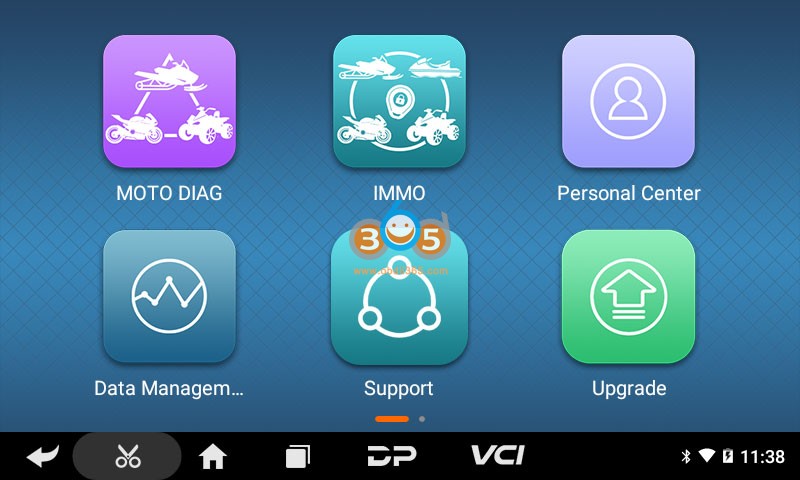
Power on machine
Go to Personal Center
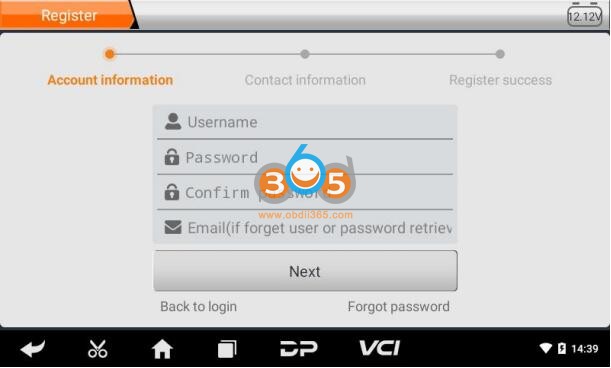
Click "Register"
register obdstar iscan tablets  1
register obdstar iscan tablets  2
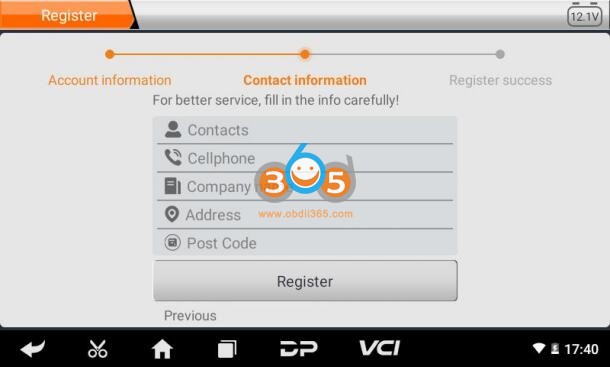
Register an account with user name, password, email and other contact information
register obdstar iscan tablets  3
register obdstar iscan tablets  4
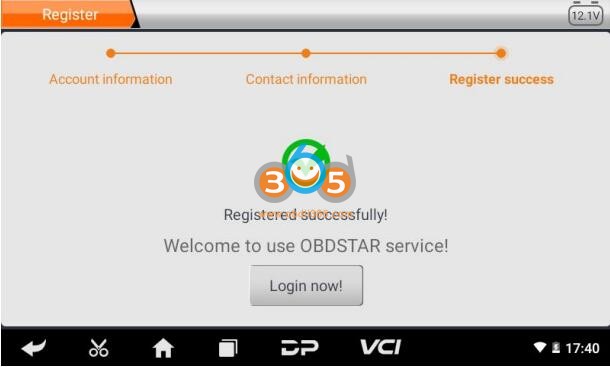
Fill in the information in each field. After that, the registration is successful, click “Login now!”
register obdstar iscan tablets  5
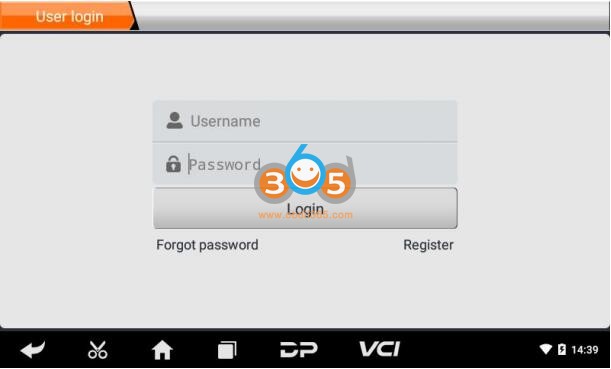
If you have registered to be a member, click “User login” to enter user login page, as following picture shown:
register obdstar iscan tablets  6
After the registration is completed, fill in the account number and password and click login.

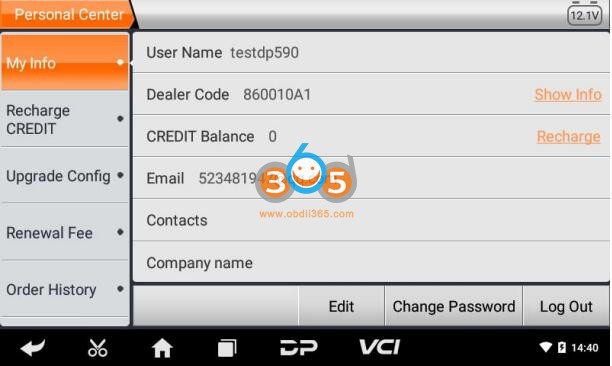
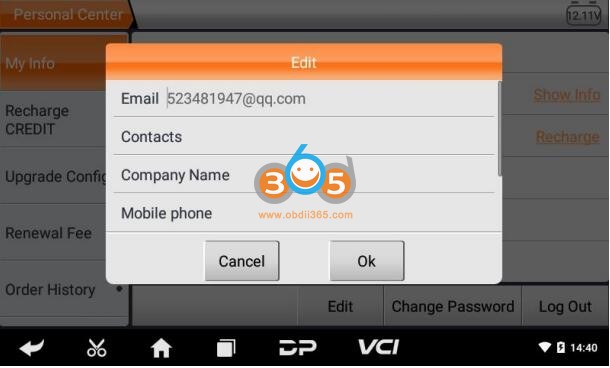
Display personal basic information and modify information and password.
register obdstar iscan tablets  7

Modify information
register obdstar iscan tablets  8
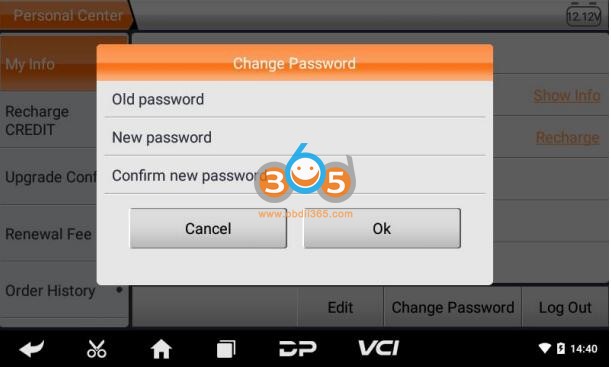
Change password
register obdstar iscan tablets  9
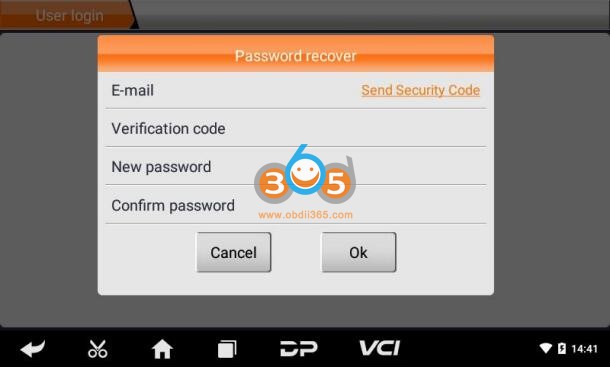
Recover password
Click on the forgotten password in the login interface to enter the password recover interface, fill in the relevant information to recover the password.
register obdstar iscan tablets  10
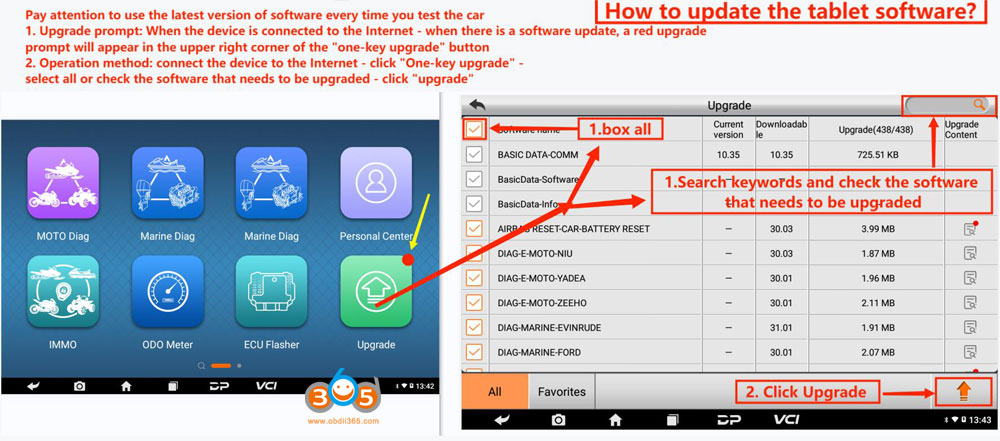
After login account, you can download and update iscan software.
How to Update OBDSTAR iScan Tablet Software


More details, check OBDSTAR iScan user manual on the webpage.